
How to Build a Document Approval Workflow With Clients
Build a document approval workflow with a clear request and response on each file. Separate comments, reversible markers and PDF signing from formal approval.
Product demonstration: Screenshots show the actual product with fictional data. Sample messages and scenarios are illustrative, not customer results.
A document approval workflow should say which file needs review, what the client must decide and who will follow up. Droplana provides file comments, reversible status markers and in-browser PDF signing. You choose the process and check the response; the portal does not route approvals or decide that a document is accepted.
Droplana gives each client a private, persistent portal for sending documents and receiving files back. Clients do not create accounts. Strict mode, the default, verifies email on a new device; a verified browser is remembered for 90 days.
Design your document approval workflow
Start with the inputs. If you need supporting documents from the client, request them before sending the draft for review. A supplied checklist item records that a file was provided, not that someone checked its contents.
Then name the outgoing file with its subject and revision, such as Strategy report - r02.pdf. Choose whether you need ordinary feedback, a signature placed on a PDF or a formal approval process with controls beyond Droplana's scope.
If you are new to the category, see what a client portal does. A consistent destination can help when requests are spread across chat messages, but it still needs a clear request.
Put the decision beside the file
Illustrative request from a consultant:
Please review Strategy report - r02.pdf, including the figures on page 3. In this file's comments, confirm which sections you reviewed or list the changes needed. Please respond by Friday so we can agree the next step.
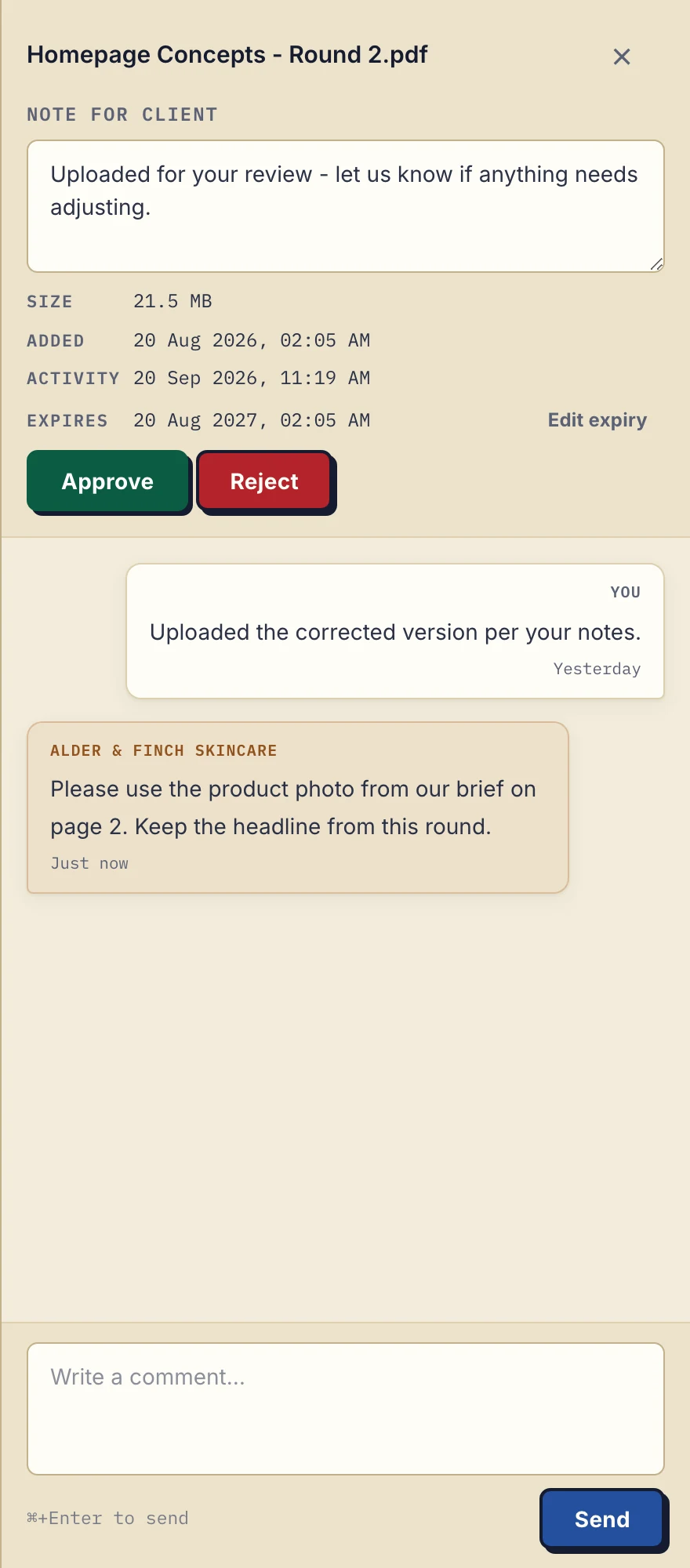
Product demonstration with fictional data. Alder & Finch Skincare asks for a change on Homepage Concepts - Round 2.pdf. The comment refers to a page; it is not an annotation on the image. View the full-size comment panel.
This fictional design exchange demonstrates the same per-file comment controls. The client names a page and requests a change. The business still reads that response, makes the correction and uploads the new revision.
Separate four kinds of record
Comments hold the request, questions and written response. They are text attached to a file, without annotation, mentions or a routed review sequence.
File status shows Approved, Rejected or unset. Either side can change or clear it. A Rejected file stays available, and the reason belongs in a comment. There is no separate Awaiting approval state and no locked final decision.
In-browser PDF signing saves a separate signed file and records the event against the signer's login. It does not follow from clicking Approve. The PDF signing page explains the recorded details and limits; the signed-contract return guide covers the client journey.
Activity records events such as downloads, comments and approvals. The business owner can view and export the account activity log. A download is not proof that the client read or understood a document, and an approval event is not a legal-sufficiency decision.
What you must do yourself
Read the client's response, resolve questions and identify the exact revision to use. Uploads do not overwrite earlier files or inherit their approval. If multiple people must approve in sequence, or a decision must be locked, use a system that supports those requirements.
Send your own approval follow-up when the agreed date passes. Checklist reminders concern missing uploads; they do not chase approval of a delivered report. If the client needs more time, record the new review date and what work is waiting. Silence is not a portal approval.
A consultant can use this process for a report and its supporting inputs. An agency reviewing several assets should also see the client file approval guide, where one asset's marker does not apply to the whole campaign.
Start with one request and one response
The Free plan is enough for this test. Solo costs €19/month or €190/year plus tax, with unlimited clients, 50 GB total storage, files up to 1 GB and one seat. Active paid plans have no plan-imposed retention limit, subject to expiry settings, deletion and cancellation.
Try a fictional report first: upload it, add a request, leave a client response and change or clear its marker. Check that your team understands which actions are manual before adopting the process.
Questions before you start
Does Droplana automate a formal approval workflow?
No. Droplana provides per-file comments, reversible Approved or Rejected markers and in-browser PDF signing. It does not provide conditional approval routing, sequential approvers or locked sign-off. A person must review responses and decide what happens next.
Can our own systems pick up the client's response?
Partly. Signed webhooks report when a comment is added or a document is signed, so your own system or automation tool can pick up those responses. A change to the Approved or Rejected marker is not sent as a webhook event, so check markers in the file list.
What can I try on the Free plan?
Free costs €0 and includes 3 clients, 2 GB total storage and files up to 100 MB, with one business seat. Files are kept for up to 180 days after upload; the client and portal remain.