
Why Shared Google Drive Folders Are a Mess for Client Work
Most client work starts in shared Drive folders. Why they break down as clients add up: sharing settings, deleted files, lost requests, and what to use instead.
Illustrative example: The Northbank exchange is illustrative. The product capture uses fictional demonstration data, not a customer result.
Shared Google Drive folders are a mess for client work because Drive is a file system, and client work is an exchange. One folder for one client works. Ten folders for ten clients means sharing settings nobody checks, files a client can move or delete, and no view of which documents you are still waiting for.
It always starts the same way. A new client, a few files to share, no time to set up anything formal. You make a folder, share the link and move on. It is free, it is instant, and the client probably has a Google account already.
Then comes client number two. Then five. Then ten. One day your Drive is full of client folders, you cannot remember who still has access to what, and you spend 20 minutes finding out why a file you shared last week is gone.
Why Drive feels right at first
Before the critique, it is worth being fair about why everyone starts here. Drive (or Dropbox, or OneDrive; most of the same points apply) is appealing for early client work:
- It is free, or already paid for.
- You already use it for everything else.
- Most clients can open a shared link.
- Sharing one file takes seconds.
For one client with one short project, this is fine. The problems start when you scale up: more clients, longer relationships, more files. The structure cracks in ways you do not see until they cost you.
The problems with shared Google Drive folders, in order of how often they bite
1. Sharing settings you are never quite sure of
Drive's sharing model is flexible, which also makes it easy to get wrong. "Share" can mean viewer, commenter or editor; a named email or anyone with the link; set on the file or inherited from the folder above it.
The classic failures:
- You shared a folder with "anyone with the link". Six months later you put a sensitive file in it, and everyone who kept the link can open that too.
- You set access on the parent folder and forgot what the subfolders inherited.
- You meant to share view-only and gave the client edit access. They changed a master file, and you found out a week later.
None of these takes carelessness. Each one is a setting that is easy to leave wrong.
2. The file that disappears
A client with edit access, often given so they can add files, can also move or delete files. Depending on who owns the file and where it went, it may vanish from your view too, or sit in a trash nobody checks. You find out when you need the file.
Tightening access fixes this, but tighter access creates the next problem.
3. The "let me change the access again" cycle
Tighten the settings and the client can no longer add their logo files, content or reference documents. So you loosen them again, or you create a separate "client uploads" folder with different settings. Now there are two folders, and the client cannot remember which one to use.
Drive has no simple upload-only role for a client in a shared folder, so a clean "read these, send those" setup across many clients takes constant care.
Underneath sits a quieter problem: even with the settings right, the folder does not show what is missing. You know you are waiting for a signed form and a photo ID, but nothing in the folder tells you or the client. So you keep a list in your head or in an email thread. A document checklist, where the client sees what is outstanding and what they already sent, is a structure Drive was not built to hold.
4. Client files mixed with everything else
Your Drive holds personal files, tax documents, your team's shared drives, client folders and a dozen things called "Untitled spreadsheet". The client folders sit in the same list as everything else.
With one client that is fine. With ten, you navigate past the rest of your life every time you open Drive to do client work, and a mistyped email or a wrong autocomplete suggestion is easier to make.
5. Access that outlives the engagement
The end of an engagement is where shared folders fail most quietly. Ideally you open the folder and remove the client's access. In practice the project ends, you move on, and the link sits in the client's bookmarks for years. For most work this is not a disaster, but after a few years dozens of past clients may still have access you never removed.
6. The client cannot find your folder
Your client's Drive shows their own files and dozens of folders other people shared with them. Yours is somewhere in there. Six months after delivery, they write: "Can you send me the final logo files? I can't find the Drive folder." It is not that they are disorganised. A shared folder is one among many, not a place they associate with you.
7. Feedback ends up somewhere else
Drive supports comments on Docs and on files, but for the PDFs and exports you exchange with clients, the context ("here is V2, I changed the third paragraph after your last note") usually travels by email or chat. Now files are in Drive and the explanation is in your inbox, and each client has two or three places to check.
8. Search across many clients is painful
Drive search covers everything you have. "Logo" returns hundreds of results across clients, old projects and personal files. In a portal with one space per client, you search inside that client's files, and the answer is usually obvious.
9. Large files do not always behave
Drive handles large files better than email, but some formats will not preview and big uploads can take time to process. None of this is a dealbreaker; it is one more small friction when video and design files are your main deliverable.
What the problem is
Step back from the individual failures and the cause is simple: Drive is a personal or team file system. Client work is a relationship.
A file system is a hierarchy of folders and files, with permissions as properties and communication kept elsewhere. Client work is an ongoing exchange of files, requests, feedback and decisions between two parties over time. Running it through shared cloud drives is like running a customer service team out of a filing cabinet. The cabinet is fine. It is the wrong shape for the job.
One exchange in a client portal
Here is an illustrative exchange in Droplana, a client document portal. Northbank Studio's consultant uploads September-review-r02.pdf to the client's portal and adds a checklist item for "September cost breakdown". The client downloads the review, uploads the requested PDF and comments on one figure. The consultant checks the returned document before marking the item done.
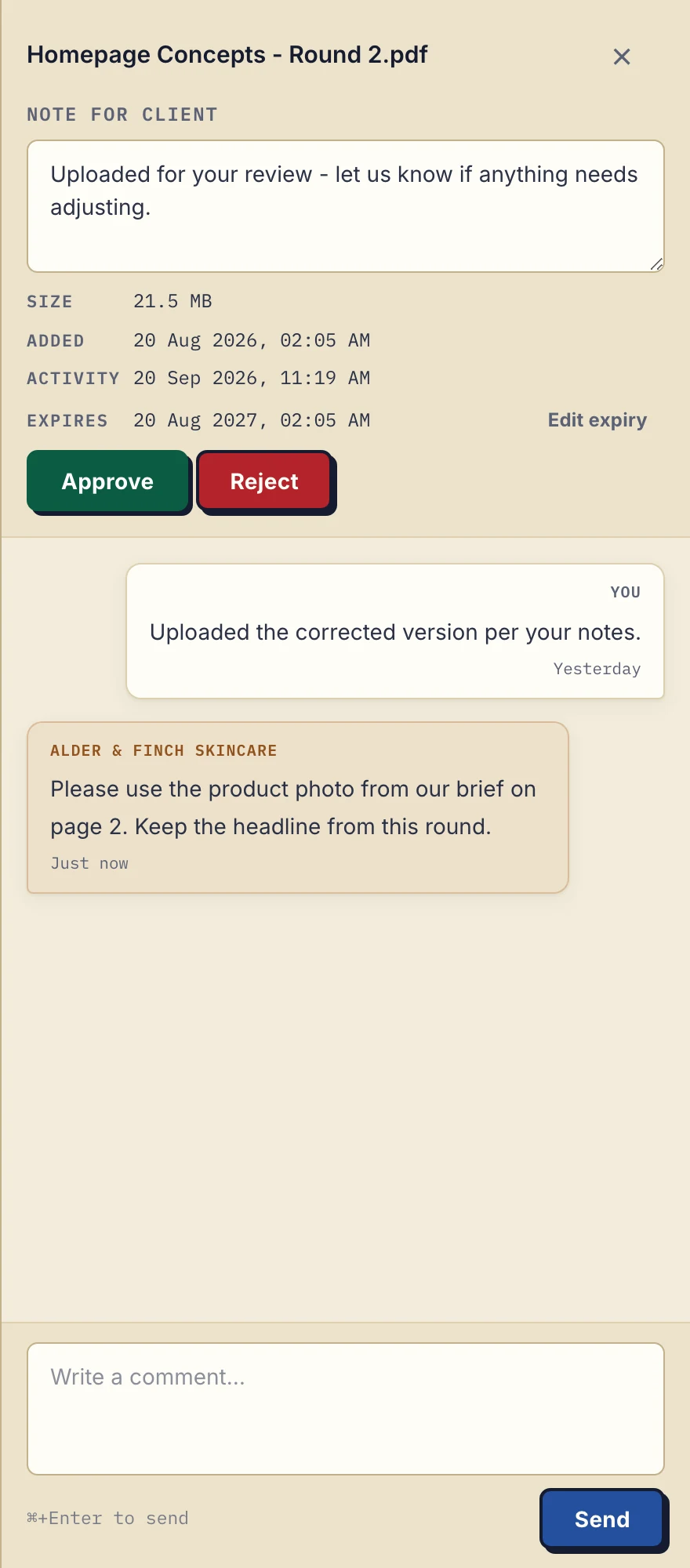
Product demonstration with fictional data: the desktop sidebar for Alder & Finch Skincare keeps a comment beside the named PDF. Open the full-size capture.
The request, the files and the comments sit in one place that belongs to that client. A checklist item marks a requested document; a file status (Approved, Rejected or unset, which either side can change) records a decision about an uploaded file. Neither proves the document is correct, so you still review it.
What to do instead
Roughly four options, in order of effort:
A focused client portal. Each client gets a dedicated portal with files, per-file comments and a document checklist. Droplana is in this group. Right when you want a clean change with little switching cost.
A portal with more bundled. The same shape with billing and contracts included, such as Assembly (formerly Copilot) or Moxie. Right when you want those in the same place and accept a higher price.
An all-in-one platform. Portal, CRM, invoicing, contracts and scheduling, such as HoneyBook, Dubsado or SuiteDash. Right when you are rebuilding all of your client operations, not only file sharing.
Stay on Drive and enforce structure. One top-level folder per client, strict sharing settings, a naming convention and a spreadsheet of who has access. Right when your client count is small and someone owns that discipline. It tends to slip once the work gets busy.
For most freelancers and small agencies, the focused portal gives the biggest improvement with the smallest disruption.
How to switch without losing your mind
You do not have to move everything.
Start with new clients. Set them up in the portal from the first request.
Move two or three existing clients. Send a short note: "I'm moving our project files into a dedicated portal; here is the link. The Drive folder stays as it is for the archive." Download the files the current work needs, upload them to the right portal and check a sample.
Leave finished projects alone. They can stay in their Drive folders. Do not leave two writable locations without a rule for which one is current.
Review old Drive sharing once a year. Whatever you use next, old shared folders collect access you forgot about.
What you keep using Drive for
Nobody is saying delete Drive. It is still the right tool for:
- personal and internal storage
- long-term archives
- team collaboration in Docs, Sheets and Slides
- work that lives inside the Google ecosystem
- one-off transfers to people who are not clients
It is not the right tool for the active client exchange. That wants its own place.
Where Droplana fits
Droplana gives each client a private portal for the files you send and the documents they return, with checklists and per-file comments. Clients do not create an account; in Strict mode, the default, they verify their email on a new device or sign in with Google or a Microsoft account they connected once. Files, comments and metadata are stored on Hetzner infrastructure in Germany, and a DPA is available on every plan. If location matters for your clients, the GDPR file-sharing guide covers the checks, because no vendor's country makes a workflow compliant on its own.
It does not edit documents, synchronise folders or replace your archive. Team members share access to all of the business's clients rather than being assigned to some. Free supports 3 clients, 2 GB, 100 MB per file and 1 business seat, with each file kept for up to 180 days after upload; Solo is €19/month plus tax for unlimited clients and 50 GB. See pricing for team plans, and the complete guide to client portals for the wider landscape, including tools that are not ours.
Questions before you start
What goes wrong with shared Google Drive folders for client work?
Sharing settings are easy to get wrong, so files end up shared too widely or too narrowly. Clients with edit access can move or delete files, tighter settings block the uploads you need, client folders mix with everything else in your Drive, access often outlives the engagement, and nothing in the folder shows which requested documents are still missing.
Can a well-organised shared Drive folder be enough?
Yes. If one person owns access, file names show the current revision and both sides can see which requests are still open, a maintained folder can meet your needs without another tool. Most setups drift because nobody keeps that discipline across many clients.
Does Droplana synchronise files with Google Drive?
No. Droplana has no Drive connector or synchronised folders. Download the files you need, upload them to the client's portal and tell the client where the current exchange lives. If you use an automation tool, Droplana can send it a signed webhook when a client uploads a document.
If you nodded through the list above, try Droplana free on one new client and keep Drive for what it does well.