
Your client sends the file back from the same link.
Clients upload to their own portal from a computer or a phone, or photograph a paper document with the phone camera. No scanner, app or account.
Product demonstration: Screenshots show the actual app with fictional client data. They are not customer results.
Droplana is a client document portal: each client gets one private portal where you send your documents and they upload theirs back, with no account to create. Client uploads are the second half of that exchange. You decide whether clients can upload, for everyone or for one client, and each file arrives in that client's portal marked with who sent it and when.
See the upload area on a phone
This is what a client of a fictional accounting firm sees on their phone. The open request has its own upload buttons, and below it an upload area takes any other file. Take Photo opens the camera, so a receipt on the desk becomes an upload without a scanner.
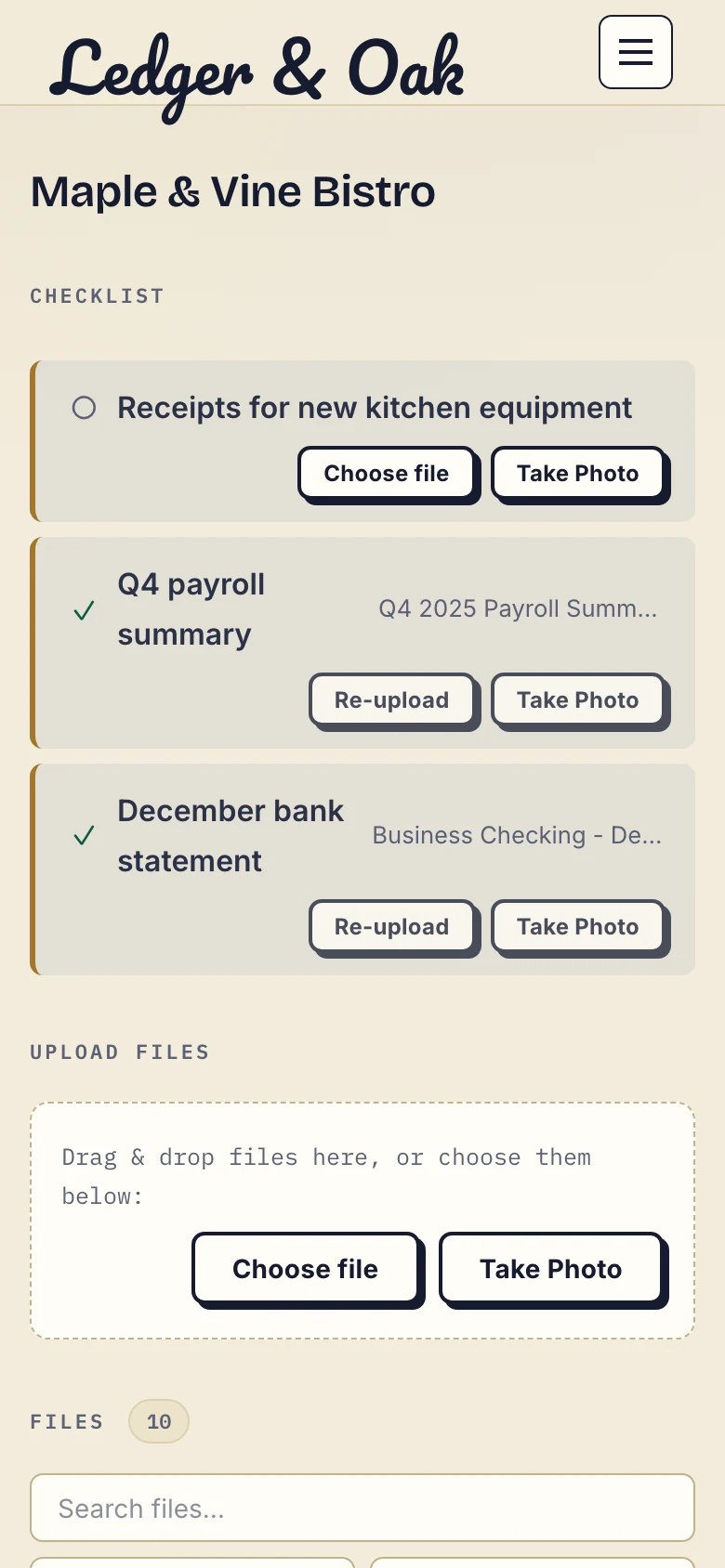
Real phone view of the client portal with fictional Ledger & Oak and Maple & Vine Bistro data. Inspect the phone screenshot at full size.
Turn uploads on for your clients
A new account starts with client uploads switched off, so nothing arrives until you want it to. Switch uploads on in your account settings for all clients, then change it for one client on that client's page: always allow, never allow, or follow your default.
A client without upload permission still opens the portal, downloads what you sent and comments on it. When uploads are on and you have asked for specific documents, each checklist request gets its own upload button, so the file lands against the item it answers.
From a phone: photograph the paper
On a phone, the portal shows a Take Photo button next to Choose file. Take Photo opens the camera and uploads the picture to the portal. Choose file opens the phone's own file picker, so a PDF saved from an email or a scan made in another app works too. Desktop browsers without a camera do not show Take Photo.
Each photo arrives as its own image file. Droplana does not merge photos into a PDF, straighten them or read their text, so say what you need in the request: every page, the whole page in the frame, text that can be read. If a photo is not good enough, comment on it and ask for another. The guide on collecting documents without a scanner has wording you can send to clients.
From a computer: several files at once
Clients drag files onto the upload area, or pick several files in the file dialog. Upload progress shows while the files go up. You upload to the same portal the same way, which is how finished work goes back to the client.
The largest single file comes from your plan and is the same for you and your clients, from 100 MB on Free to 5 GB on Studio; the plan summaries below list each one. A storage add-on raises the limit to 5 GB on any paid plan. When your account's storage is full, new uploads stop and existing files stay available.
After the file arrives
The file appears in the client's portal and on your client page, labelled with who uploaded it. You hear about it by email, as it happens, hourly or in a daily digest, depending on the frequency you choose. From there you can comment on the file, mark it Approved or Rejected with comments and approval, or sign a PDF in the browser.
Files cannot be edited after upload. A corrected version is a new upload, and the first one stays until someone deletes it. A client can delete a file they uploaded themselves, never one you sent them.
Files are stored in Germany and encrypted at rest. The security page explains the access levels, the encryption and where that protection stops.
If you want an upload to reach your own system, an outgoing webhook can send a message each time a document is uploaded, on every plan. See integrations for what can be connected.
What uploads leave to you
- Checking the contents. An upload tells you a file arrived. You still check that it is the right document, period and number of pages.
- Filing it elsewhere. Files stay in the portal. Nothing is copied automatically into your accounting, legal or project software.
- Long-term archiving. The portal is for the exchange, not a records archive. Keep what you must retain in the system your work requires.
Included on every plan
Client uploads and Take Photo are included on Free and paid plans. Free covers 3 clients; its files expire 180 days after upload while the clients and their access stay active.
Free
€0/month
Just you
3 clients
2 GB storage
Up to 100 MB per file
Solo
€19/month
€190/year
Just you
Unlimited clients
50 GB storage
Up to 1 GB per file
Practice
€49/month
€490/year
Team size: 5
Unlimited clients
250 GB storage
Up to 2 GB per file
Studio
€99/month
€990/year
Team size: Unlimited
Unlimited clients
1 TB storage
Up to 5 GB per file
On Free, each file expires 180 days after upload. Your clients and their access stay active, so you can keep sharing new files. Active paid plans have no plan-imposed retention limit. Expiry settings, deletion and cancellation rules still apply; a persistent portal address does not guarantee permanent file availability. Team sizes include you. No setup fees or automatic overage charges. Prices exclude applicable tax.
Compare plan detailsQuestions about client uploads
Do clients need an account to upload?
No client signup, password or app is required. Clients open their private portal link. In the default Strict access mode, a client verifies their email on a new device, and that browser is remembered for 90 days.
Can a client photograph a paper document instead of scanning it?
Yes. On a phone, Take Photo opens the camera and uploads the picture to the portal. Each photo is its own image file. Droplana does not merge photos into a PDF or read their text, so ask for every page and readable text.
How large can a client's upload be?
The limit comes from your plan and is the same for you and your clients: 100 MB per file on Free, 1 GB on Solo, 2 GB on Practice and 5 GB on Studio. A storage add-on raises the limit to 5 GB on a paid plan.
Can I stop one client from uploading?
Yes. Uploads are off for a new account. Switch them on for all clients in your account settings, then allow or block uploads for a single client on that client's page. A client without upload permission can still open your files and comment on them.
Can a client delete a file after uploading it?
A client can delete a file they uploaded themselves, never a file you sent them. Files cannot be edited after upload, so a corrected version arrives as a new file.