
Feedback belongs on the file it is about.
Every document in a client's portal has its own comment thread and an optional Approved or Rejected marker, so the answer does not get lost in a separate email.
Product demonstration: Screenshots show the actual app with fictional client data. They are not customer results.
Droplana is a client document portal: each client gets one private portal where you send documents and they send files back, with no account to create. Comments and approval are part of that exchange, not a separate review tool. Each file carries its own thread, seen by your team and that client, and either side can mark the file Approved or Rejected when your work needs a clear answer.
See a comment thread
An agency uploaded the second round of a homepage design with a short note for the client. The client replied on the file itself: use the product photo from the brief, keep the headline. Weeks later, anyone opening that PDF still sees why the next round changed.
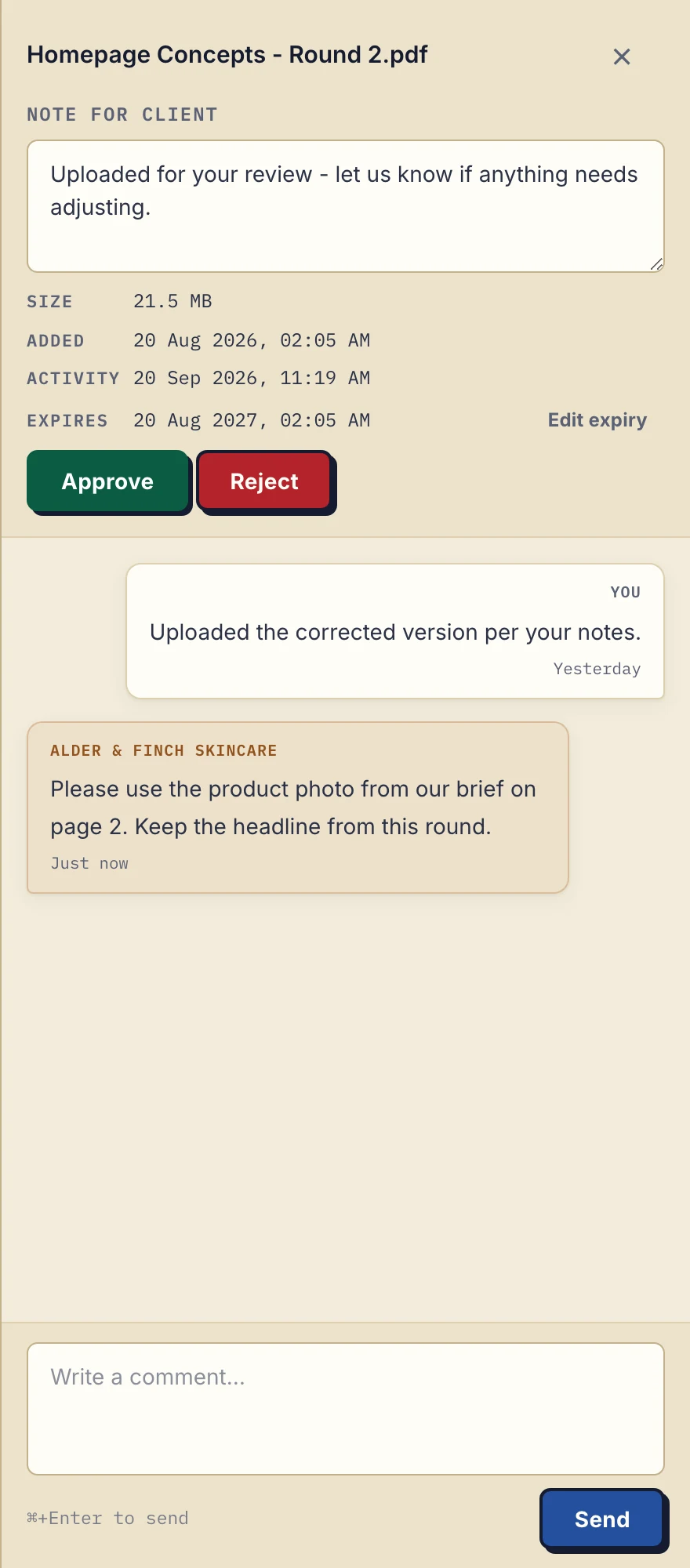
Real desktop file sidebar in the business view, with fictional Alder & Finch Skincare data. Open the full-size comment view.
How file comments work
A comment belongs to one file. Open the file, write, send. The thread shows who wrote each comment and when, and it stays with the file for as long as the file is in the portal. There is no separate inbox to search.
Your business sees the thread, including colleagues on Practice and Studio, and so do the contacts on that client's portal. Other clients never see it. Comments are plain text in one list: there are no replies inside a comment, no @mentions and no markup placed on a page of the PDF.
While you have a thread open, a new reply from the other side appears in it within a few seconds, without reloading. The file list and file status update when you reload or act. That is close to a conversation, but it is not co-editing a document.
When you are not looking at the portal, email tells you. New comments, uploads and status changes go out as they happen, hourly or as a daily digest. You choose the frequency, and a new account starts with the daily digest.
Approved or Rejected: a clear answer on one file
Some files need a yes or no: a design round, a draft report, a scan that is either readable or not. For that, switch on the Approve and Reject buttons in your account settings. They are off for a new account, and the setting applies to all your clients. Once on, the buttons appear in the file sidebar for you and in your clients' portals.
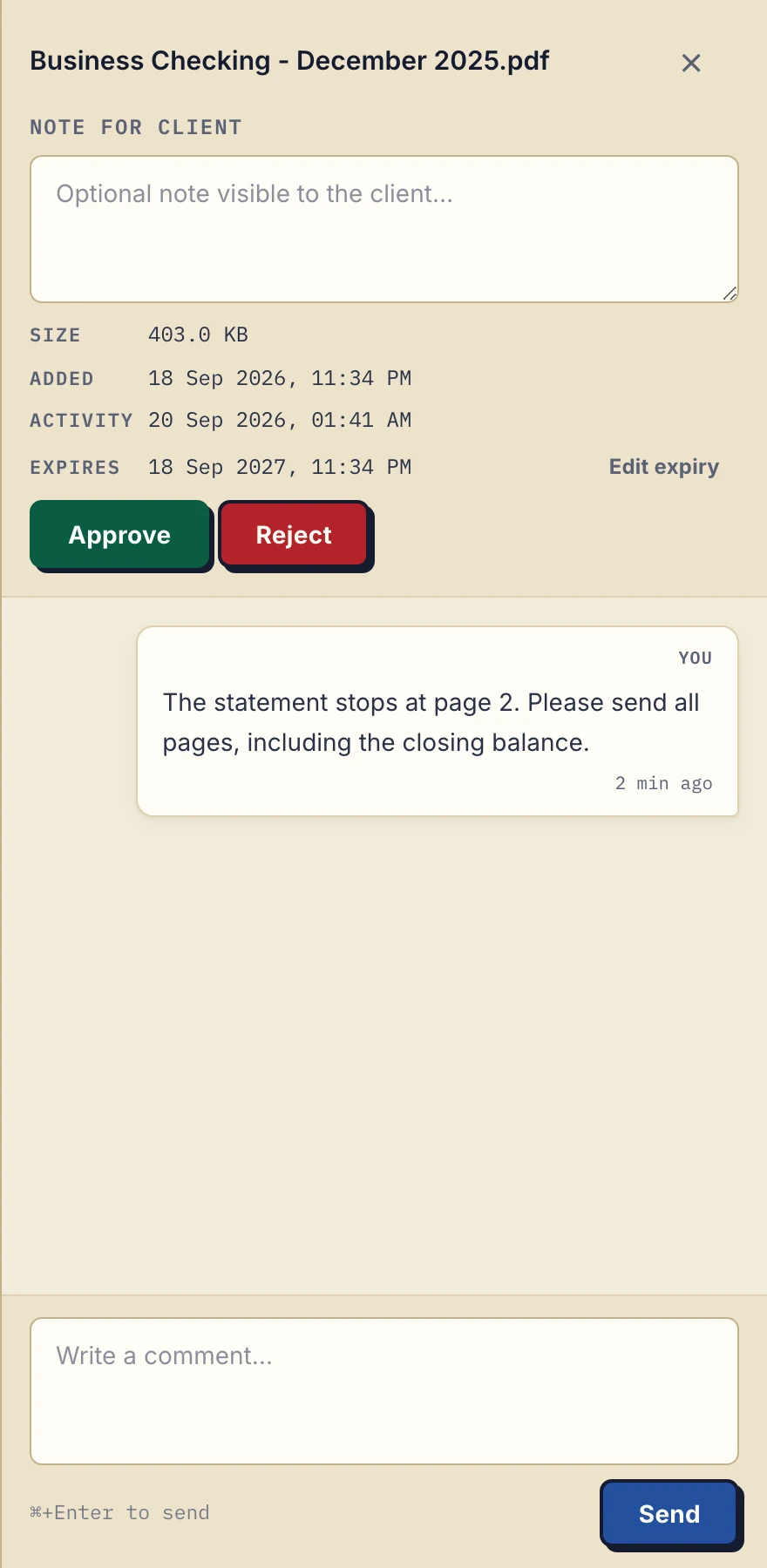
Real business file panel with fictional accounting data. Inspect the comment screenshot.
- Either side decides. You can approve the client's upload, and the client can approve your deliverable. Either side can also clear the marker back to no status.
- Two values only. Approved or Rejected, or nothing. There are no custom statuses, approver roles or multi-stage approval chains.
- Rejected does not remove anything. The file stays in the portal, unlocked. Write the reason as a comment on it, and the corrected version arrives as a new upload, because files cannot be edited after upload.
A review round, step by step
- Upload the draft with a note. Add a short note for the client on the file, such as "Round 2 for your review, comments by Friday please."
- The client comments on that file. They open their portal, open the PDF and write what should change. You get the comment by email at the frequency you chose.
- Upload the next round as a new file. Reply on the old file that the corrected version is up, so the history reads in order.
- The client marks the new round Approved. Both of you see the marker in the file list. The earlier round keeps its comments.
The same pattern works the other way round. An accounting firm receives a bank statement, sees that it stops at page 2, marks it Rejected and asks in a comment for all pages. The client uploads the full statement as a new file. For more on setting up review rounds with clients, read the guides on a client file approval process and a document approval workflow.
Where approval stops
A marker records a decision in the portal. It does not prove that someone read the document, and it is not a signature: either side can change it later. When you need a signed copy with a record of who signed and when, use in-browser PDF signing, which saves a new signed file beside the original.
There is no deadline on an approval and no reminder to approve. If you need the client to send documents by a date, document checklists have due dates and reminders.
Connect it to your own tools
Comments work without any setup. If you want more, an AI assistant connected through the MCP server can read the comments on your files and add one, when its token has that permission. An outgoing webhook can tell your own system each time a comment is added. Both are available on every plan; the integrations page explains what a connected tool can and cannot reach.
Included on every plan
Comments and the Approve and Reject buttons are included on Free and paid plans. Free covers 3 clients; its files expire 180 days after upload while the clients and their access stay active.
Free
€0/month
Just you
3 clients
2 GB storage
Up to 100 MB per file
Solo
€19/month
€190/year
Just you
Unlimited clients
50 GB storage
Up to 1 GB per file
Practice
€49/month
€490/year
Team size: 5
Unlimited clients
250 GB storage
Up to 2 GB per file
Studio
€99/month
€990/year
Team size: Unlimited
Unlimited clients
1 TB storage
Up to 5 GB per file
On Free, each file expires 180 days after upload. Your clients and their access stay active, so you can keep sharing new files. Active paid plans have no plan-imposed retention limit. Expiry settings, deletion and cancellation rules still apply; a persistent portal address does not guarantee permanent file availability. Team sizes include you. No setup fees or automatic overage charges. Prices exclude applicable tax.
Compare plan detailsQuestions about comments and approval
Who can see the comments on a file?
Your business, including team members on Practice and Studio, and the contacts on that client's portal. Other clients never see them. Each comment belongs to one file.
Can my client approve or reject a file?
Yes, once you switch on the Approve and Reject buttons in your account settings. They are off for a new account and apply to all your clients. Either side can then mark a file Approved or Rejected, or clear the marker again.
What happens to a rejected file?
It stays in the portal. It is not locked or deleted. Give the reason in a comment on that file. The corrected version is uploaded as a new file, because files cannot be edited after upload.
Is an Approved marker the same as a signature?
No. Approved is a status that either side can change or clear. When you need a signed copy with a record of who signed and when, use in-browser PDF signing, which saves a new signed file beside the original.
Does the other side hear about a new comment?
Yes, by email. New comments, uploads and status changes are sent as they happen, hourly or as a daily digest, depending on the frequency you choose. A new account starts with the daily digest. While a comment thread is open, new replies appear in it every few seconds without a reload.