
How to Send Documents to Clients for Review
Send documents to clients with a named revision and clear review request. Show where to download, comment or approve, and distinguish receipt from acceptance.
Product demonstration: Product screenshots use fictional demonstration data; sample requests are illustrative, not measured customer results.

To send documents to clients, upload a clearly named file, tell the client what response you need and agree how long it will remain available. A download can show that a file was retrieved; it does not establish that the client read, understood or accepted it.
Send documents to clients with a specific next action
For an occasional, small exchange, your agreed email process may be sufficient. For repeated reports and revisions, a per-client portal keeps incoming documents and outgoing work together.
Droplana gives each client one private, persistent portal for sending documents and receiving files back. Clients do not create accounts or install an app. Strict mode, the default, requires email verification on a new device; a verified browser is remembered for 90 days. A stable portal address is different from a permanent access link, which is available only in Relaxed mode.
Check who should have access before sending the invitation. The client portal is one shared exchange for that client, not a separate private workspace for each project or stakeholder.
Upload the report and explain the revision
Illustrative delivery message:
Your [report-v2.pdf] is available at [portal link]. This replaces [report-v1.pdf] for review. Please check [specific section] and leave any correction as a comment on v2 by [date]. If you agree with the contents, use the response method we have agreed. Download the final copy for your records before [agreed retention or expiry].
A revision upload creates another file and leaves the original. Name the current version explicitly; Droplana does not provide an automatic version tree or document editing.
Show the client where the file is
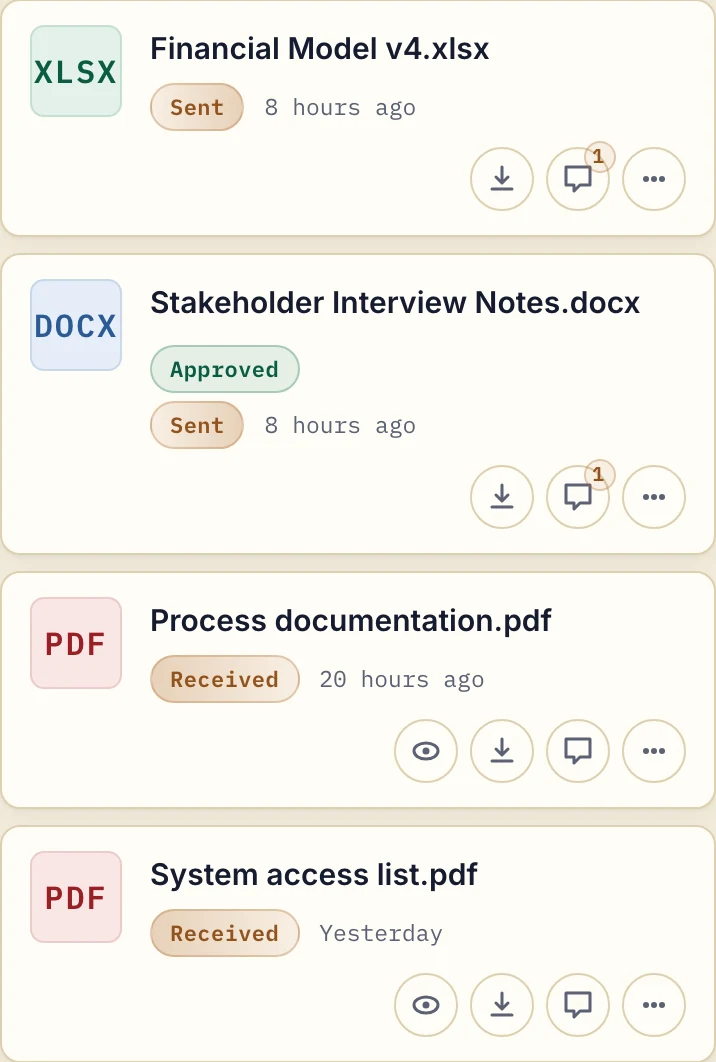
Product demonstration with fictional data. The client can download the sent files. Approved is a reversible file marker, not proof of legal acceptance.
The fictional client sees sent files alongside received process documentation. Download controls retrieve the file; comments stay attached to that file. The marked interview notes demonstrate a status, not proof of the client's intent or a contract's legal effect.
Separate three kinds of response
- Download activity: the business owner's activity log records downloads. It does not establish comprehension or agreement.
- File status: either side can set Approved or Rejected, or clear it. Agree what you use the marker to communicate; it is reversible.
- In-browser PDF signing: an identified signer can place a typed, drawn or uploaded signature. The signed PDF is a new file and the original remains. The record identifies who signed, when and from which IP, with a public verification page. It is not a qualified or certified electronic signature.
Use a signing method suitable for the specific document. Checklist reminders concern missing uploads, not chasing approval or signing of a delivered report.
Agree access and retention at handoff
Droplana stores files, comments and metadata on Hetzner infrastructure in Germany. A DPA is available on every plan. EU hosting does not replace your own document-handling responsibilities.
Free costs €0 and supports 3 clients, 2 GB total storage, files up to 100 MB and one business owner. Each Free file expires 180 days after upload; the client and portal remain. Solo is €19/month or €190/year plus tax, with unlimited clients, 50 GB total storage, 1 GB files and one business seat. Active paid plans have no plan-imposed retention limit, subject to expiry settings, deletion and cancellation.
Check plans and limits, keep required archival copies separately and explain any shorter file expiry you set. For a complete intake-to-delivery example, see Droplana for consultants. When you need supporting documents back, use the scanner-free collection guide.
Questions before you start
Does a download mean a client accepted the document?
No. Download activity records retrieval, not reading, comprehension or acceptance. Ask for the response the work requires.
Is Approved a permanent sign-off?
No. Either side can set Approved or Rejected and clear the marker. It is a reversible file status, separate from a signing process.
Does uploading v2 replace v1?
No. A new upload creates another file. Name the revision and tell the client which document to review.