
Client Files Organised: Stop Losing Work Across Apps
Keep client files organised with a worked naming example, one exchange channel and a manual archive checklist. See portal costs, access rules and retention.
Keep client files organised by choosing one place for each client's active exchange, naming revisions clearly and recording where the archive lives. Start with one client whose documents you currently search for across email, Drive and chat.
Droplana is a client document portal for sending work and receiving files back in one private space per client. It can organise that exchange alongside your accounting, editing and recordkeeping systems.
Keep client files organised around a client and a period
A useful structure answers three questions: whose file is this, which period or project does it cover, and what should happen next? A folder full of final.pdf files answers none of them.
Illustrative example: a consultant works with Northbank Studio on its September operations review. Their internal working folder holds spreadsheets and draft notes. The client's portal holds the report sent for review and the supporting documents requested back. Their records store holds completed engagement copies according to the firm's retention policy.
| Place | Content and responsibility |
|---|---|
| Internal working folder | Editable analysis and private notes. Maintained by the consultant. |
| Northbank client portal | Report PDF, requested cost breakdown and file comments. Maintained by the business; the client supplies files. |
| Records store | Checked final copies and engagement record. Maintained by a named records owner. |
These are locations you choose, not folders Droplana creates or synchronises. Keep private working notes out of the client portal. A colleague should be able to find the active exchange without searching your personal inbox.
Use names that identify the file and revision
For the example above, use Northbank-2026-09-Operations-review-r01.pdf. After editing the source document, upload Northbank-2026-09-Operations-review-r02.pdf and add: “Please review r02; it replaces r01 for this review.”
Keep a revision identifier even when a file has a status. Droplana files are immutable after upload; uploading again creates a separate file. It does not merge revisions or automatically choose the current one. Avoid renaming every draft “final”.
For a returned document, Northbank-2026-09-Cost-breakdown.pdf tells you more than scan2.pdf. Explain the naming convention to the client, but do not make a perfect filename a condition for accepting a useful document.
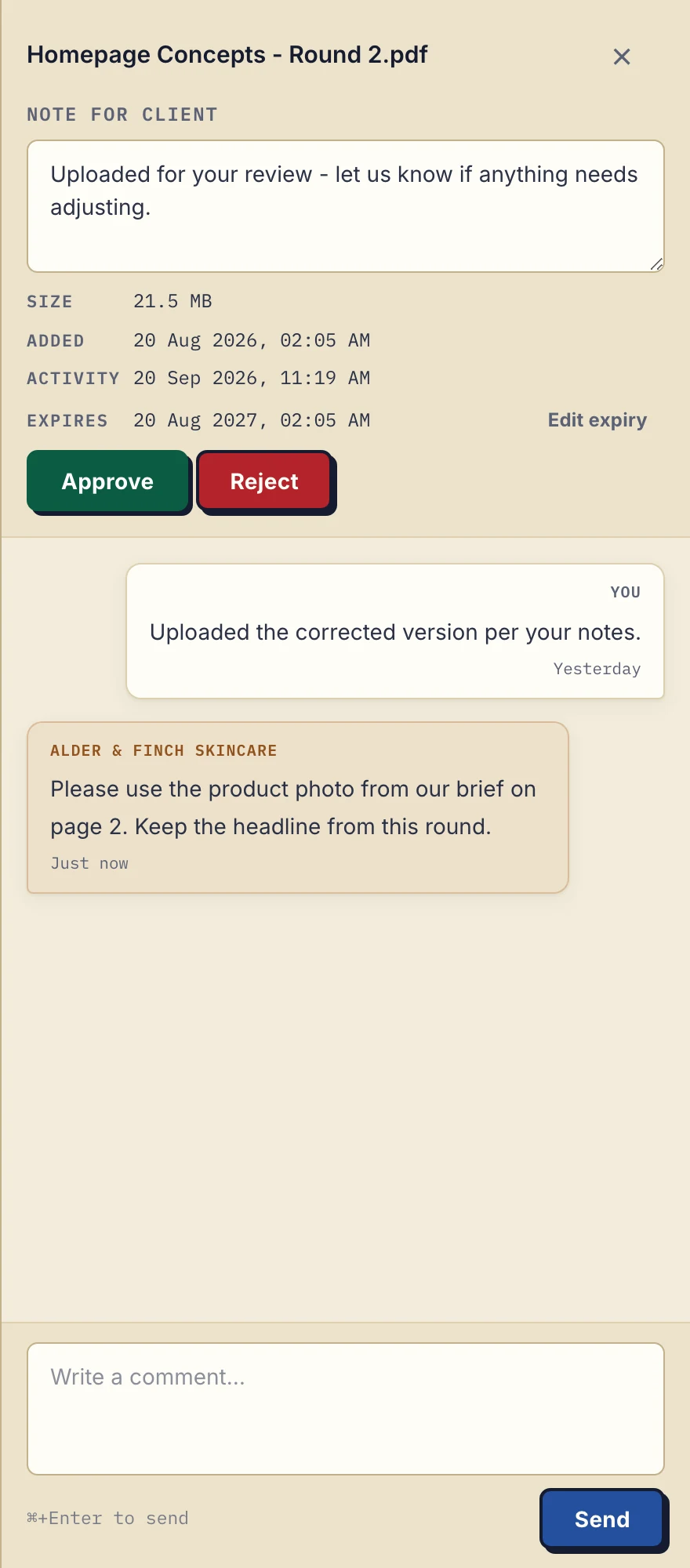
Product demonstration with fictional data: the desktop sidebar for Alder & Finch Skincare keeps a comment beside the named PDF. This is a file discussion, not a project chat or document editor. Open the full-size capture.
Choose one exchange channel and make exceptions visible
Agree where new files will go. If a client sends a document through chat, save and upload the needed copy manually, check it opens, then reply with its portal location. There is no automatic import from messaging or email.
A client portal is useful for recurring requests. A well-maintained shared folder or email filing system can be enough for occasional exchanges. Keep the chosen rule in the client's handover notes.
Separate a request from a decision about a file
A document checklist names what you still need: “September cost breakdown” or “Current process notes”. A file status records a decision about a document already supplied. In Droplana the statuses are Approved, Rejected or unset; either side can set or clear them.
Use a comment to explain a rejection or the part needing review. Approved is not a substitute for checking the file's content or recording a decision in your own professional system.
Close the engagement with a manual archive check
Do not treat an old portal as your archive. Choose a records location, a responsible person and a review date under your own policy.
- Download the retained files you need and open representative copies.
- Record which client, period and revision each copy covers.
- Keep required correspondence and working records in their appropriate systems.
- Tell the client when to save their own copies; decide separately when portal access should end.
- Review expiry and deletion settings only after confirming the copies you need exist.
This is a manual records process, not an automatic Droplana archive or an “inactive client” workflow. The aim is to make retrieval predictable; measure your own experience instead of assuming a time saving.
Where Droplana fits and what it costs
Clients do not create an account. With Strict mode, the default, they verify their email on a new device. The persistent portal address is a destination, not permission to bypass verification.
Free is enough to try this with one client. Solo costs €19/month or €190/year plus tax, with unlimited clients, 50 GB total storage, 1 GB per file and 1 business seat. Active paid plans have no plan-imposed retention limit, but expiry settings, deletion and cancellation rules still apply. Team access requires Practice or Studio; compare the plan limits before inviting colleagues.
The consultant workflow shows a report-out, evidence-back exchange; the freelancer page covers individual client work. Keep editing, invoicing and long-term records in the systems that already handle them. If those systems should know when a client returns a document, every plan includes signed webhooks and an MCP server for an AI assistant or automation tool.
Questions before you start
Does one portal replace all my business systems?
No. Droplana handles client document exchange. Keep editing, invoicing, internal working notes and long-term records in appropriate separate systems.
Does Droplana archive completed clients automatically?
No. Download and check the copies you need, record where they are kept, then review retention and portal access separately.
How long do Free files stay available?
Free keeps each file for up to 180 days after upload. The plan supports 3 clients, 2 GB total storage and 100 MB per file; clients and their portal access remain.
Try this naming and records check with one client, then start a Free portal for the next exchange.