
Client Portal Adoption: Invitations and Follow-Ups
Improve client portal adoption with a small rollout, a clear invitation and a useful follow-up. See the mobile journey and decide how to handle attachments.
Product demonstration: Product screenshots use fictional demonstration data; sample requests are illustrative, not measured customer results.
Client portal adoption starts with a task the client understands. Introduce the portal with one document they need to send or receive, explain the access step and ask what blocked them if they do not finish. Treat a small rollout as something to learn from, not a guaranteed improvement.
Start client portal adoption with a real request
Choose a few clients whose feedback you can act on. For each one, request a specific file or send a useful deliverable. Avoid moving an entire archive before you know whether the exchange suits them.
Illustrative invitation:
Hello [name], please use [portal link] to send [document and period] for [purpose]. Start with [first item]. You can see the remaining requests there and return to the same portal for our report.
No client account or app is needed. On a new device, verify with the email address we have recorded for you. If you cannot get in or find the file, contact [person]. Please do not forward your sign-in link.
Adapt the downloadable invitation, including who on your business team can access the files and the applicable retention.
Walk through access on a phone
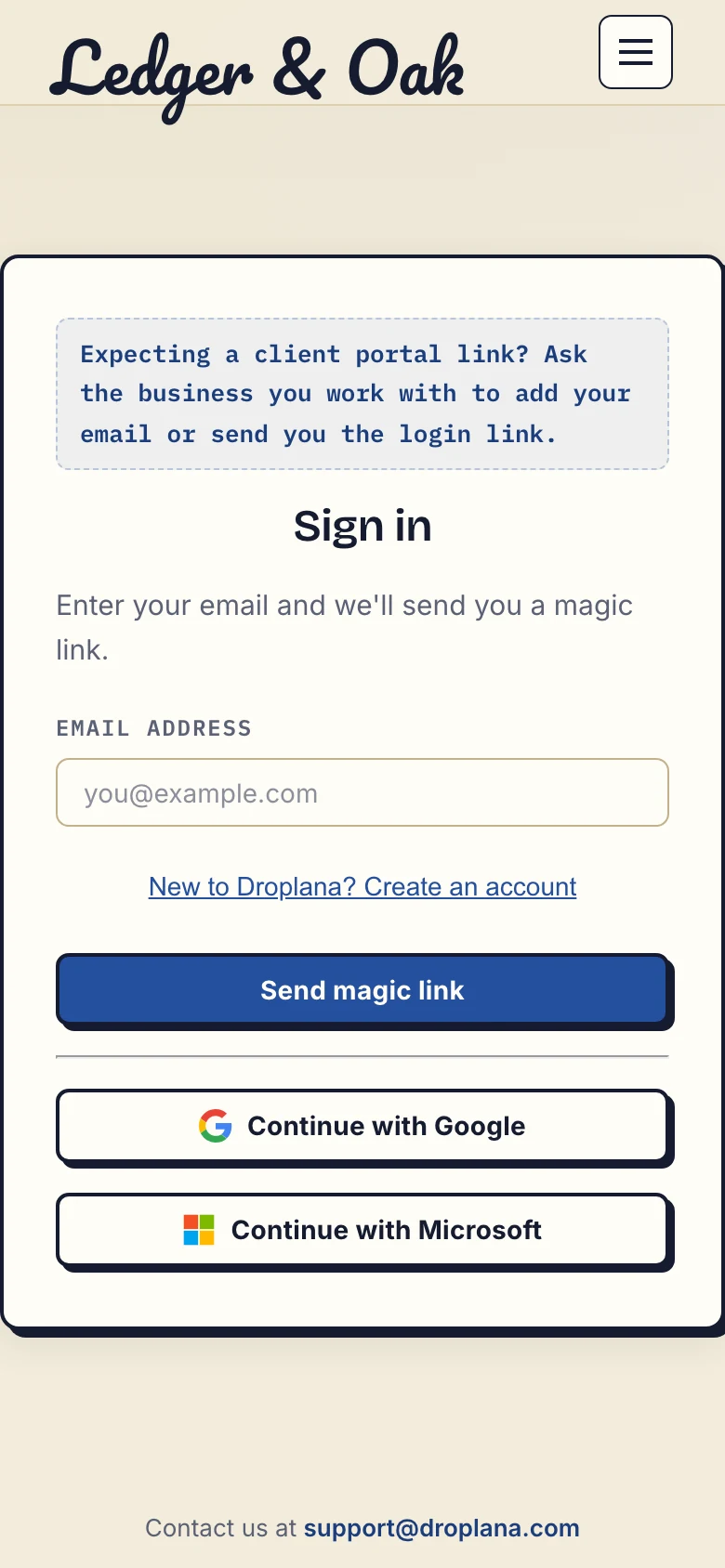
Product demonstration with fictional data. The fictional Ledger & Oak sign-in page starts email verification; clients do not use the business signup link.
In Strict mode, the default, a new device needs email verification. After verification the browser is remembered for 90 days. Do not explain “no signup” as “no verification”. Instead of the emailed link, a client who already uses Google can sign in with it, if the email you added for them is their Google address, and a client can connect a Microsoft account once with an emailed code.
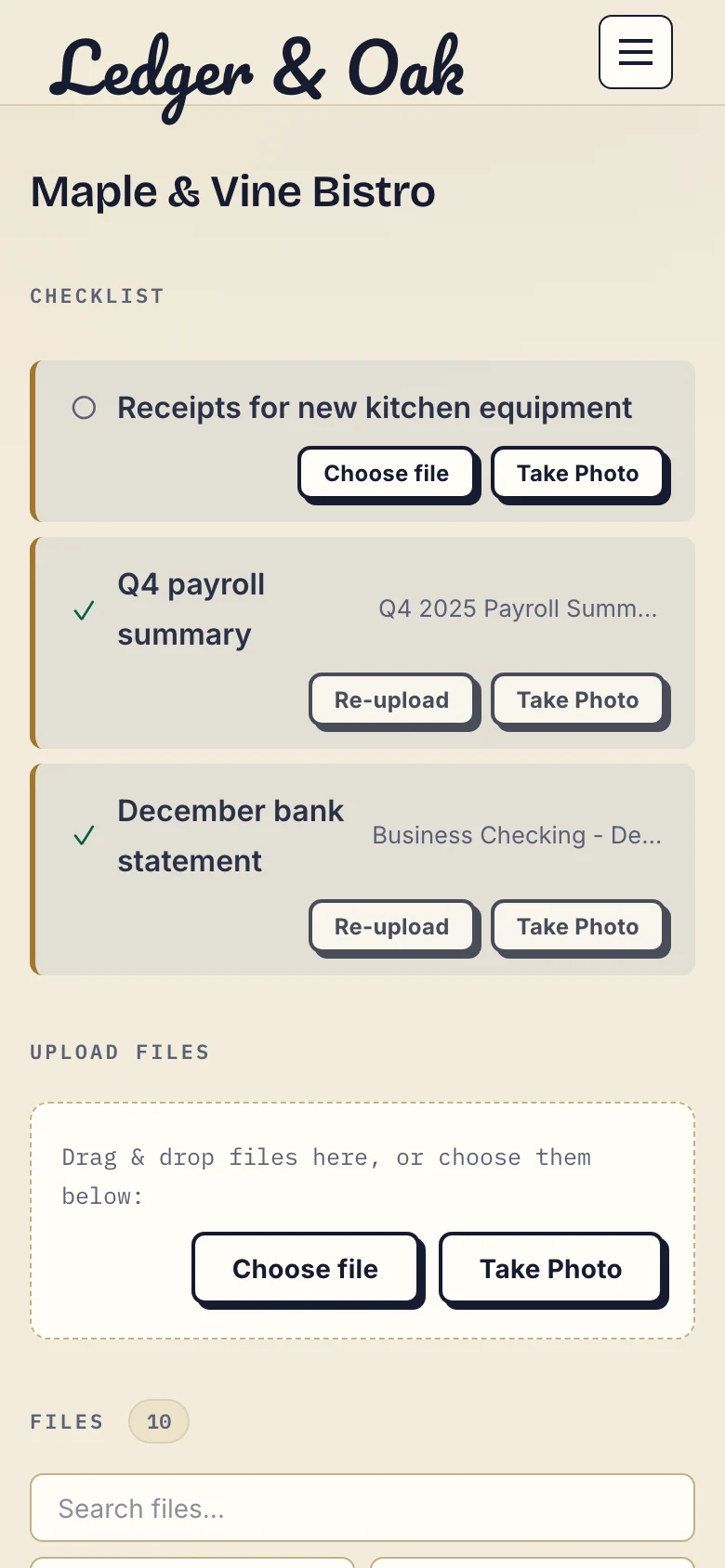
Product demonstration with fictional data. The client sees supplied payroll and statement items alongside the missing receipts.
The client can choose an existing file or use Take Photo for suitable paper documents. Wait for the upload to complete and check the supplied item or file. In the fictional example two items have been supplied while receipts remain outstanding. This does not prove the documents have passed professional review.
Camera and picker behavior depends on the device and permissions. If capture is unavailable, the client can photograph the paper separately and choose the saved file. Check that uploads are enabled and that the file fits the business plan before treating a failed upload as reluctance.
Follow up on the obstacle
Illustrative follow-up:
We still need [item] for [purpose]. Were you unable to open the portal, find the document or finish the upload? Tell [contact] which step stopped you. The return location is [portal link]; clear photos are acceptable for [specified items].
Droplana's checklist reminders can name missing uploads, but cannot diagnose every access or document problem. They are not reminders to read or approve your deliverable.
Handle attachments without losing the record
If a client emails a document during the transition, follow your firm's handling process. Where appropriate, upload it to their portal and reply: “Thank you, I have put [file] in your portal at [link]. Please use that location for the remaining [item].” Do not pretend a business-uploaded file was uploaded by the client.
Agree an alternative if the portal is inaccessible or unsuitable for a particular person. A consistent record matters more than enforcing a rule that prevents the work.
Review the small rollout before expanding
Record the access step, upload step and request wording that needed help. Ask whether the client could find the returned file. These observations can improve your own process; the examples here do not establish adoption rates or time savings.
Free costs €0 and supports 3 clients, 2 GB total storage, files up to 100 MB and one business owner. Each Free file expires 180 days after upload; the client and portal remain. Solo is €19/month or €190/year plus tax, with unlimited clients, 50 GB total storage, 1 GB files and one business seat. Active paid plans have no plan-imposed retention limit, subject to expiry settings, deletion and cancellation.
See plans. The accounting practices page puts the rollout in the context of recurring client requests. Keep required archives separately; portal access and file retention are different decisions.
Questions before you start
Do clients need to create an account?
No. In Strict mode, the default, they verify their email on a new device. A verified browser is remembered for 90 days.
What should I do when a client keeps emailing attachments?
Ask which step is difficult. Follow your firm’s handling process, keep the document record together where appropriate, and explain where the remaining files belong. Agree an alternative when necessary.
Does a small rollout guarantee better adoption?
No. Use it to observe confusion and improve the instructions. These examples are suggestions, not measured adoption results.