
Onboard a New Client Without a Week of Email
Onboard a new client with one clear document request, a ready checklist and a review step. Reuse an invitation template and handle missing or incorrect files.
Illustrative example: Sample requests are illustrative. Product screenshots use fictional demonstration data, not customer results.

Onboard a new client by preparing the document list and upload destination before sending the welcome message. Explain what to send, what depends on another person and when you will review it. The aim is fewer avoidable exchanges, not a guaranteed one-day onboarding.
Droplana is a client document portal for sending a pack, collecting files back and keeping corrections beside each file. It supplies the destination and checklist; you decide the request and review the documents.
Onboard a new client with six clear steps
1. Decide the whole ask before the first message
List the documents and decisions needed to start this engagement. Name each document, its period, its purpose and acceptable format. Separate required items from optional ones. If later questions depend on the initial review, say so.
2. Set up the destination before you contact them
Create the client portal, enable uploads and prepare the checklist. Upload the brief or instructions the client needs. Check that the correct contacts have access before you send the address.
3. Send one message that contains everything
Combine the welcome, list, portal address, agreed return date and your review commitment. Say which items can be photographed and which require a different format. Avoid guessing how long the client will need.
4. Name the long-lead item explicitly
Identify documents held by a previous adviser or another organisation. Ask the client to request those first and tell you if they cannot obtain them. A portal cannot shorten an external organisation's turnaround.
5. Review each item as it arrives
Check the period, legibility and page count. If a file needs correction, comment on that file with the exact change needed. A checklist item supplied with a file still needs your review.
6. Close the loop and say what happens next
Confirm when the pack is complete and state the next action and date. If an item is still unavailable, agree how it affects the work rather than leaving the client to guess.
Client invitation template
Open the editable client invitation (plain text). It includes preparation checks and wording about authorised team access. Adapt it to the engagement:
Hello [name], please use [portal address] to send [document and period] for [purpose]. You do not need to create an account or choose a password; follow the sign-in instructions, which may ask you to verify your email. Start with [item that depends on another person]. Contact [person] if anything is unavailable. We will review what arrives by [date] and explain the next step.
Use the onboarding worksheet to prepare each request before copying it into the checklist.
Request, upload and correction
Illustrative consultancy request: ask for the process description, stakeholder notes, financial model and cost breakdown. The phone example shows how the client can distinguish supplied items from a missing cost breakdown.
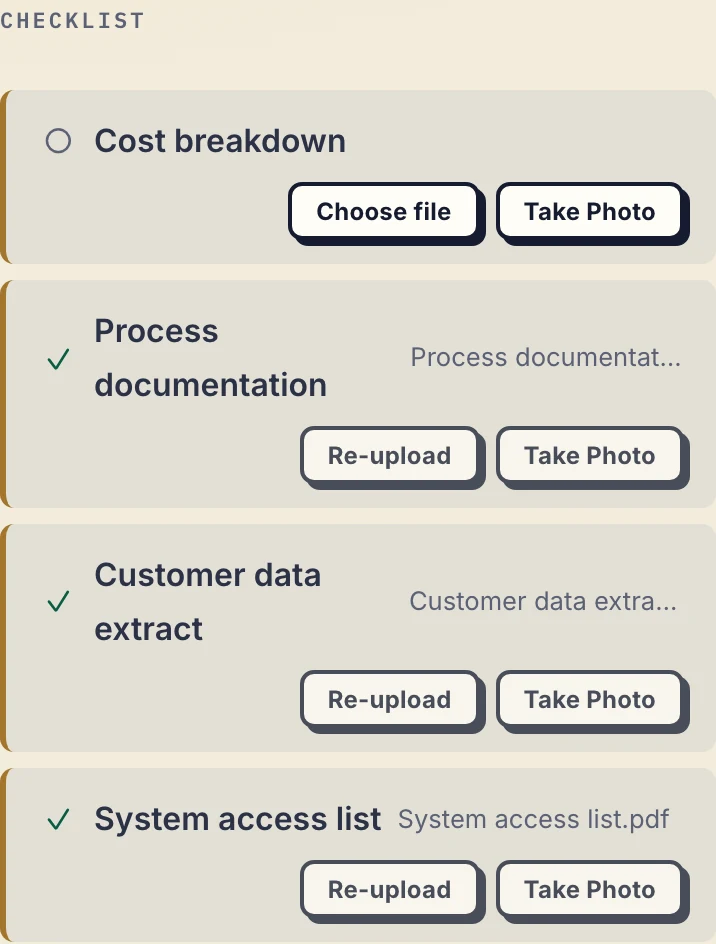
Product demonstration: the actual phone portal with fictional Granger Foods data. Supplied does not mean reviewed or accepted.
In a separate fictional demonstration, Clearpath Studio sends an onboarding request for July costs. The client uploads a June cost breakdown through the browser. The business comments on the returned file to request July instead:
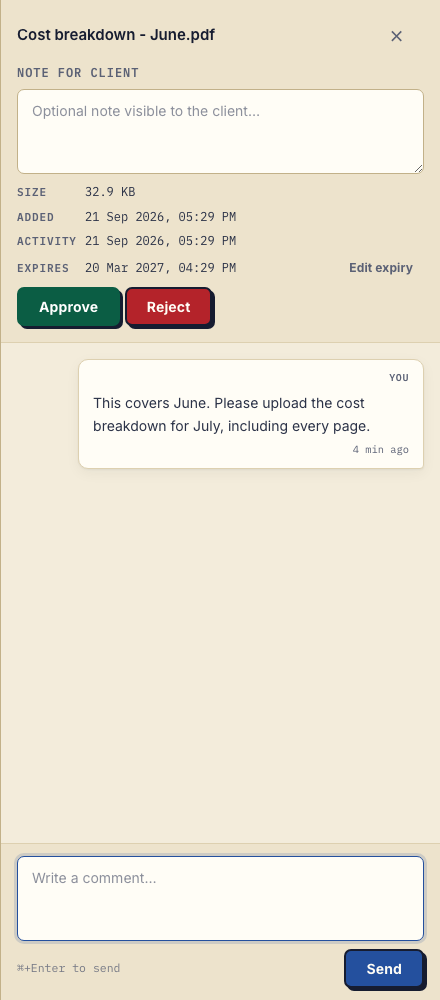
Product demonstration: an actual PDF upload and saved correction comment in Droplana, using fictional data. The screenshot shows the request for a replacement, not a completed correction.
A replacement upload is a separate file. Name it with its date or revision and review it before marking it Approved. The marker can be changed or cleared; it is not a permanent approval record.
Access, cost and limits
Clients do not create an account or choose a password. Strict mode, the default, requires email verification on a new device. Enable client uploads when you want files back. The business owner, authorised team members and contacts attached to that client can access the client's portal; other clients cannot.
Free includes 3 clients, 2 GB shared storage, a 100 MB file limit and files kept for up to 180 days from upload. Solo costs €19/month or €190/year plus tax, with unlimited clients, 50 GB storage and a 1 GB file limit. Both have one business seat; teams need Practice or Studio. Active paid plans have no plan-imposed retention limit, subject to expiry settings, deletion and cancellation. See plans and limits.
The portal does not determine which documents your work requires or make an unavailable client respond. For the request itself, see why clients do not send documents; for return methods, see collecting documents from clients. The consultants page shows how this fits an engagement.
Questions before you start
Can a portal guarantee onboarding in one day?
No. Timing depends on the request, client availability, document quality and third parties. A prepared checklist and a clear review commitment can remove avoidable exchanges without guaranteeing a completion time.
Does an uploaded file mean the request is complete?
No. Review its period, legibility and page count. Ask for corrections on the file and review the replacement before treating the item as accepted.
Do clients need to sign up?
No. Clients use their portal address without creating an account. Strict mode requires email verification on a new device.
Try Droplana free with one client exchange before choosing a plan.